
Help guide
For students
Using your student dashboard
Learn how to make the best use of your student dashboard.
5 min read
Your student dashboard
Shown below is an example of a student dashboard. There are a number of sections which you can use to get started. It shows any homework you have been allocated or have yet to complete, the classes you are currently enrolled in, which school you are currently enrolled in and other important information. Later sections in this guide will cover how to make the most of each section.
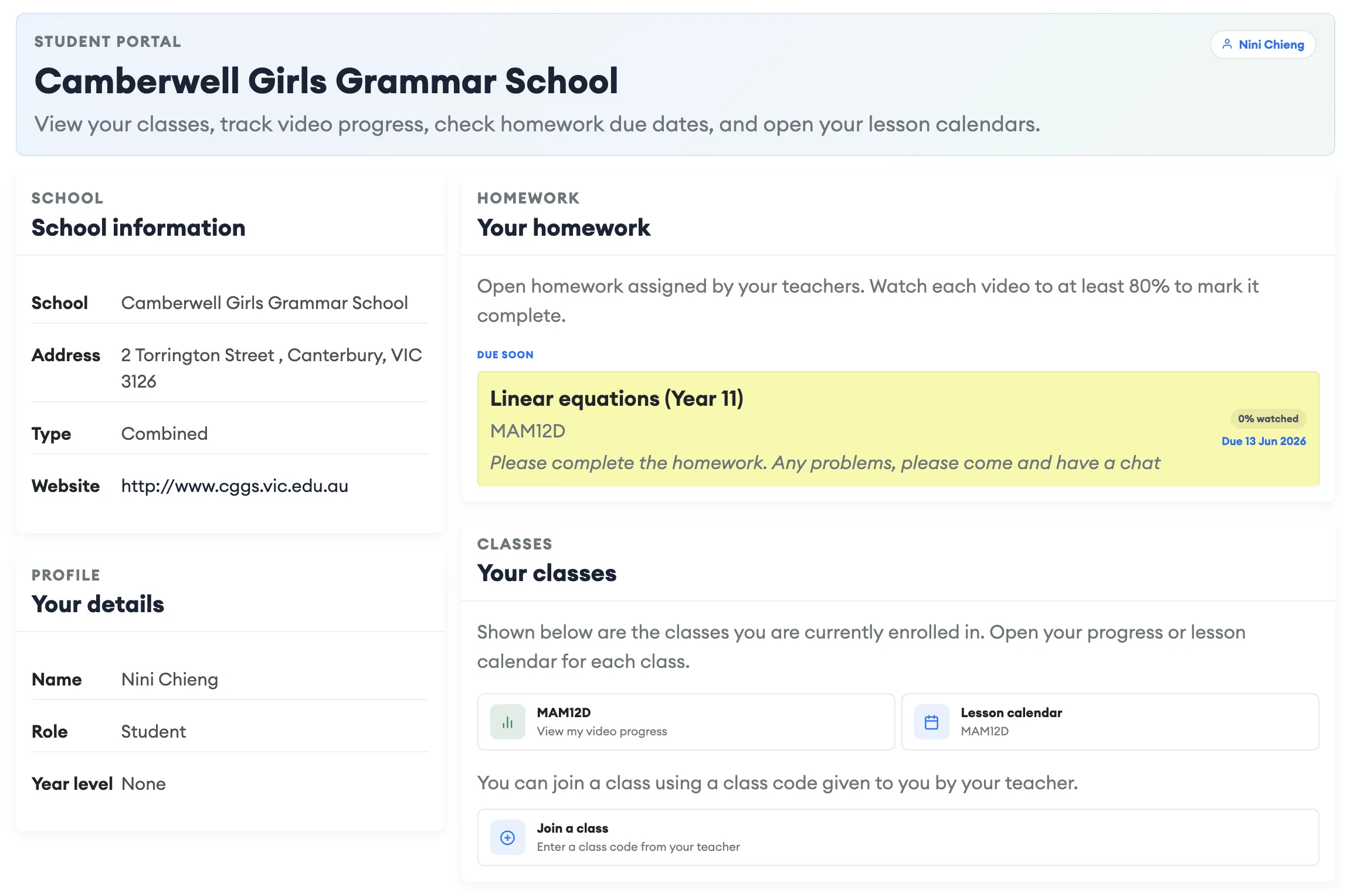
Can't see a class?
Ask your teacher to confirm you are enrolled for the correct year. They can add you from the teacher portal.
The homework section
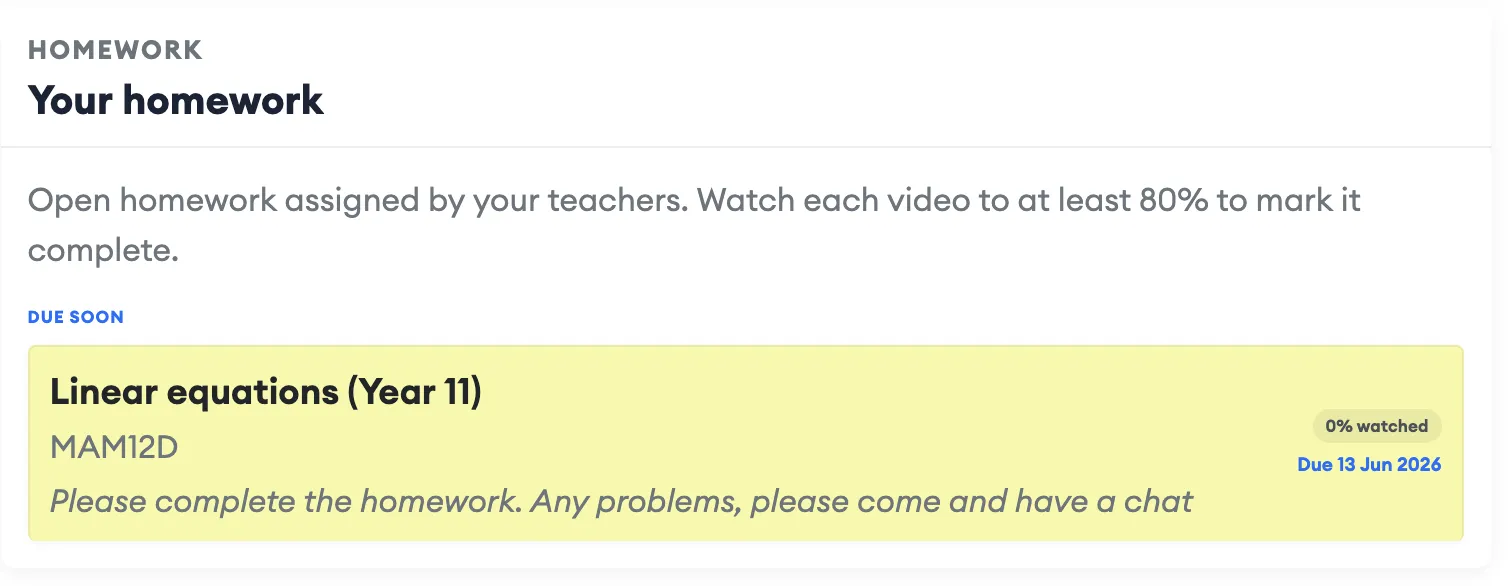
Any homework set by your teacher appears with a due date on your dashboard. You can click each card and it will take you to the video you have been set.
Top tip
You need to watch at least 80% of a video to have it removed from this homework screen.
Classes you are enrolled in
This section of the dashboard shows you the classes you are enrolled in. Click on the class code to open a record of the videos you have watched. You can also click on the calendar icon to open your class calendar.
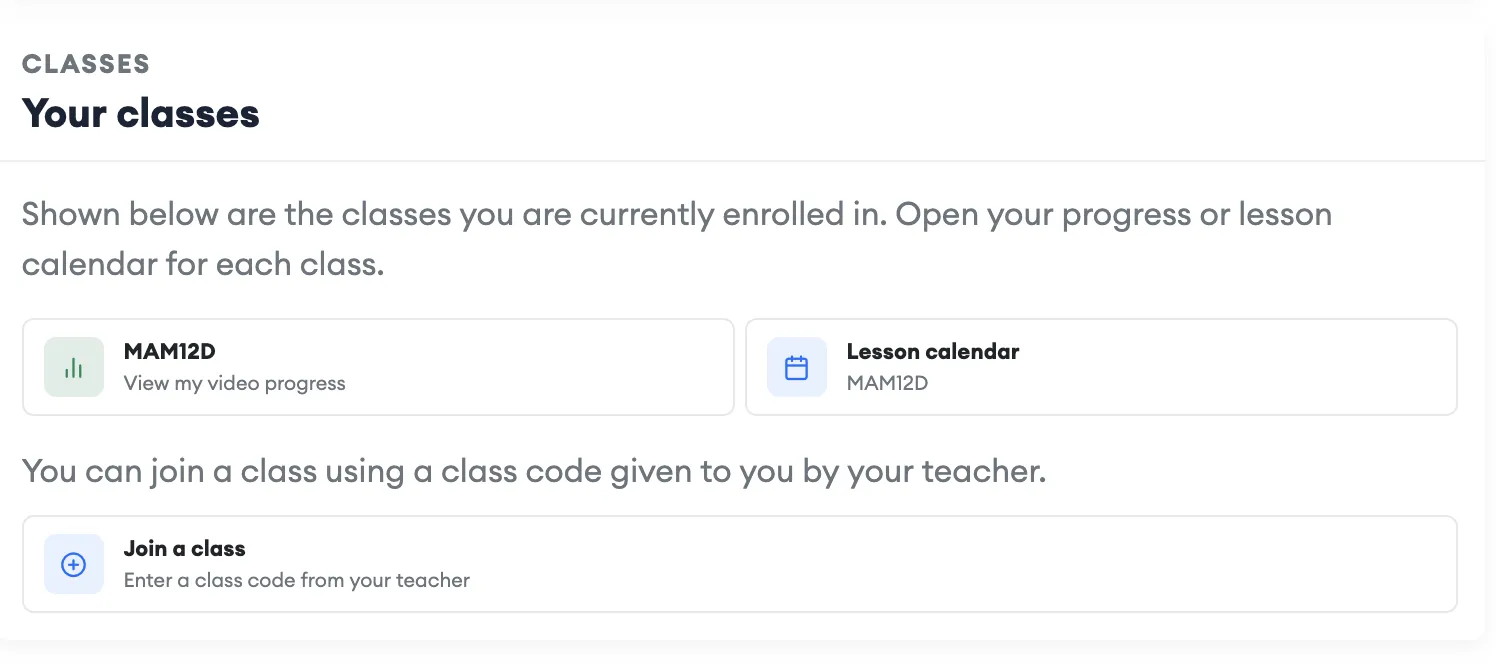
An explaination of each button is shown below.
-
1
Join a class
Click here to join a class. Youn will need a class code form a teacher to be able to join a class.
-
2
Lesson Calendar
Your teacher will have mapped the course you are doing showing which lessons will take place on which day.
-
3
Class Code e.g. MAM12
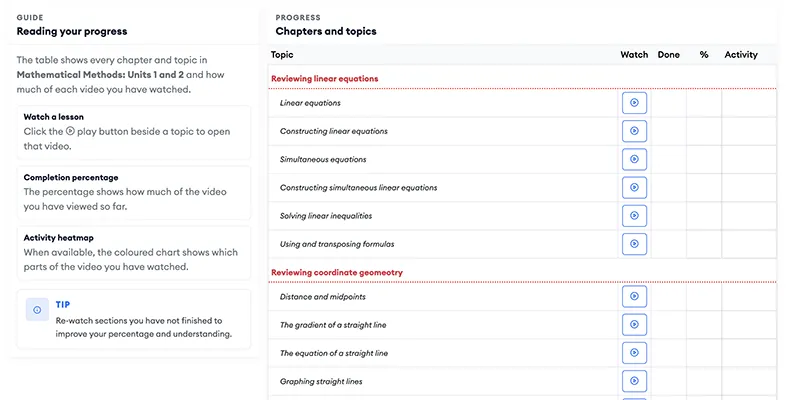
Clicking here will show you the current progress with videos watched for a particular course.
Due dates are a guide
Your teacher sets deadlines to help you stay on track. If you need an extension, speak with them directly.
Joining a class
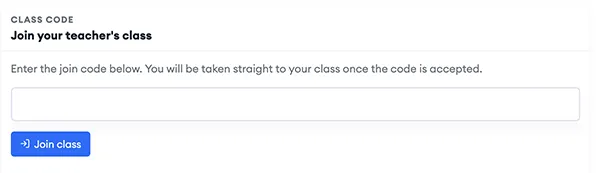
Your teachers will set up classes for you to join. You can join a class by clicking join class link on your students dashboard. This will take you to a screen where you can enter the join code your teacher will give you.
Make Sure ...
Make sure you have a valid class code provided by your teacher. Joining it immediate.
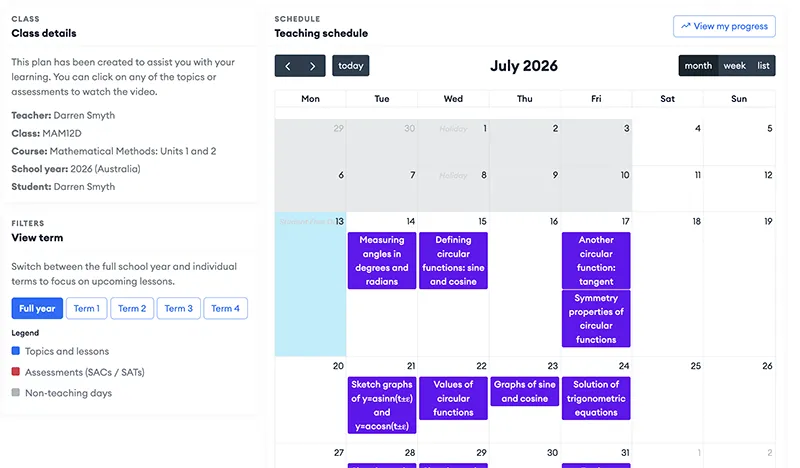
Lesson Calendar
Your teachers will have mapped the course you are doing showing which lessons will take place on which day. Clicking on the Lesson Calendar card will open your class calendar.
Top Tip
Clicking on any of the videos in the calendar will give you the option to go straight to the calendar.
View your progress
Each time you watch a video the progress will update. Clicking on the progress card will open a record of the videos you have watched.
Ready to go
Open your dashboard
Put what you have learned into practice.